Admin Scope
Admins can view the full fleet, manage firmware policy globally, apply and clear single-device overrides, support dealer rollout actions, and administer API tokens across the permitted user base.
Fleet Console
Fleet Console is the fastest full-fleet operational screen. Use it to verify live or offline state, search across dealers and customers, confirm OTA version uptake, and jump into device-level management quickly.
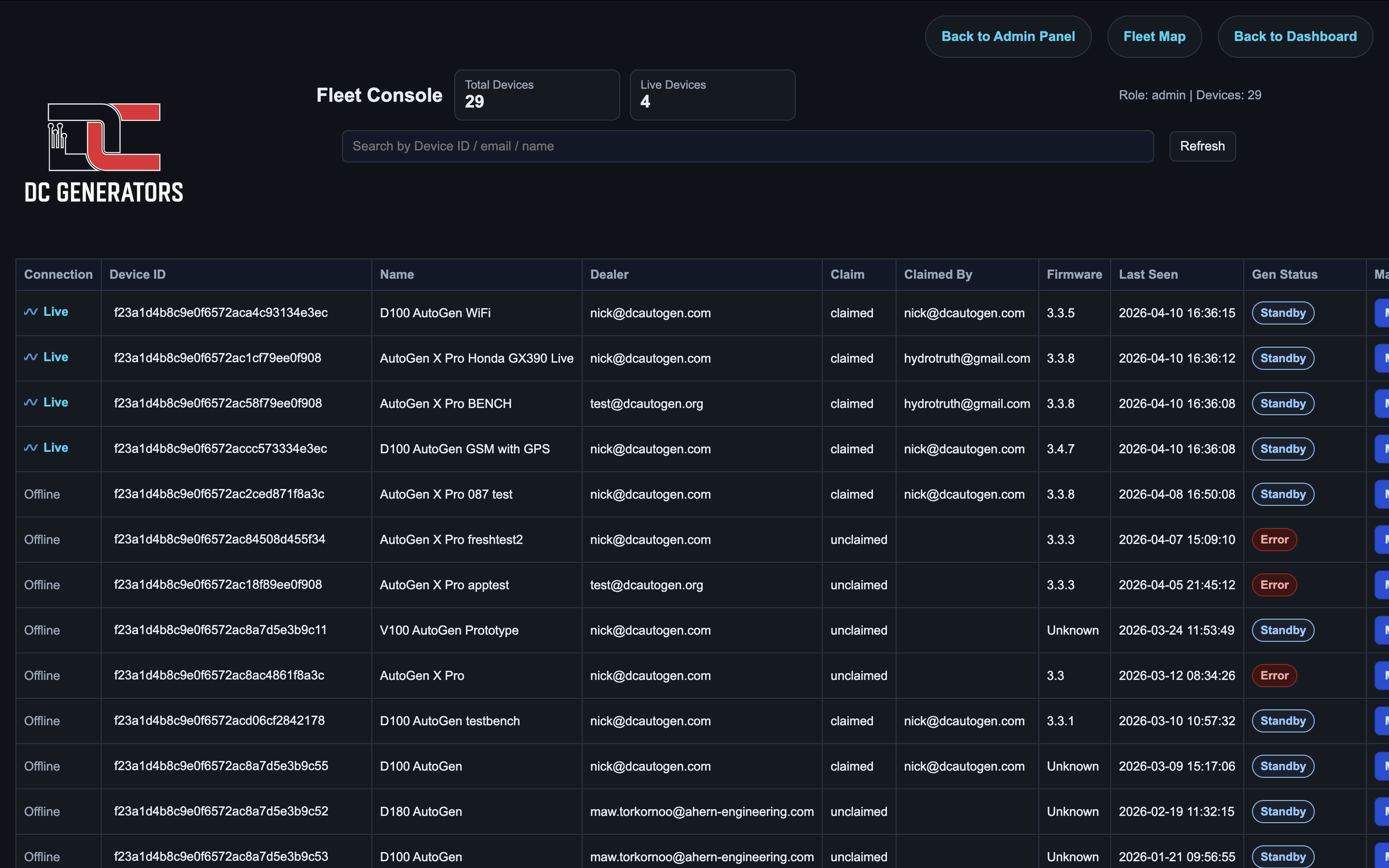
Start here when you need to isolate one dealer, one user, one firmware version, or one problem device quickly.
This is the first place to confirm whether an OTA actually landed and whether the device came back live afterward.
Rows are the operational units of the fleet console. Read across them rather than focusing on one column in isolation.
Use Manage when a fleet-level question becomes a device-level action or investigation.
Device Manage Page
The Manage page is the single-device action screen for targeted operational tasks. Use it for command validation, reboot actions, OTA forcing, and troubleshooting one device before widening a rollout.
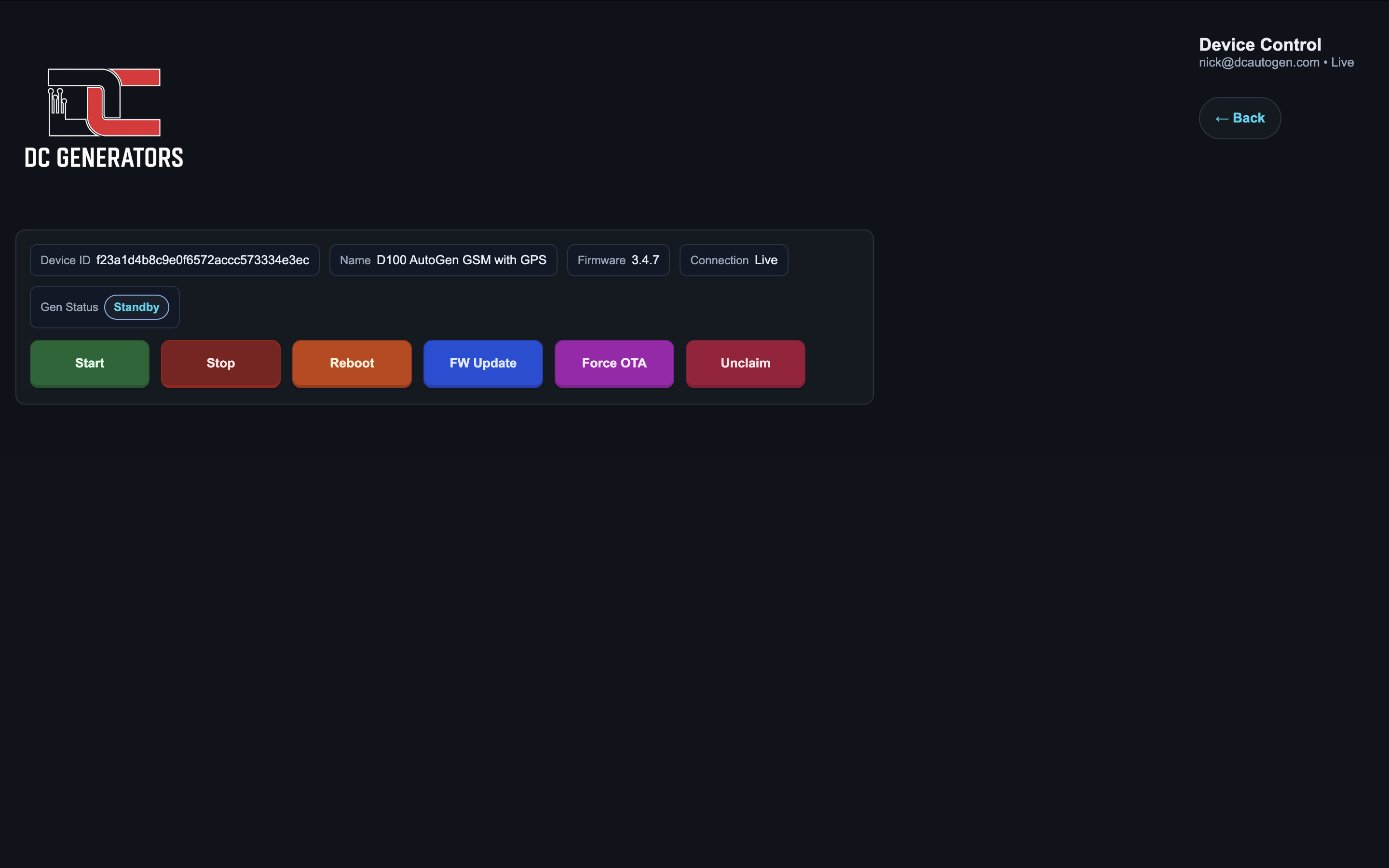
Always validate the exact target before running commands. Mistakes here turn into operational errors very quickly.
Use these values to decide whether the device is healthy, online, and in the right condition for a firmware or control action.
Keep single-device actions narrow and intentional. This page is where you prove a step before expanding scope.
OTA interpretation depends on knowing which policy layer currently applies to the device.
Diagnostics
Diagnostics are available from the single-device Manage page for AutoGen Ultra and AutoGen DC Generator devices. Open a supported device, select the Diagnostics tab, and use the event history to investigate starts, stops, retries, protection shutdowns, service locks, and recovery cases without opening the device firmware logs.
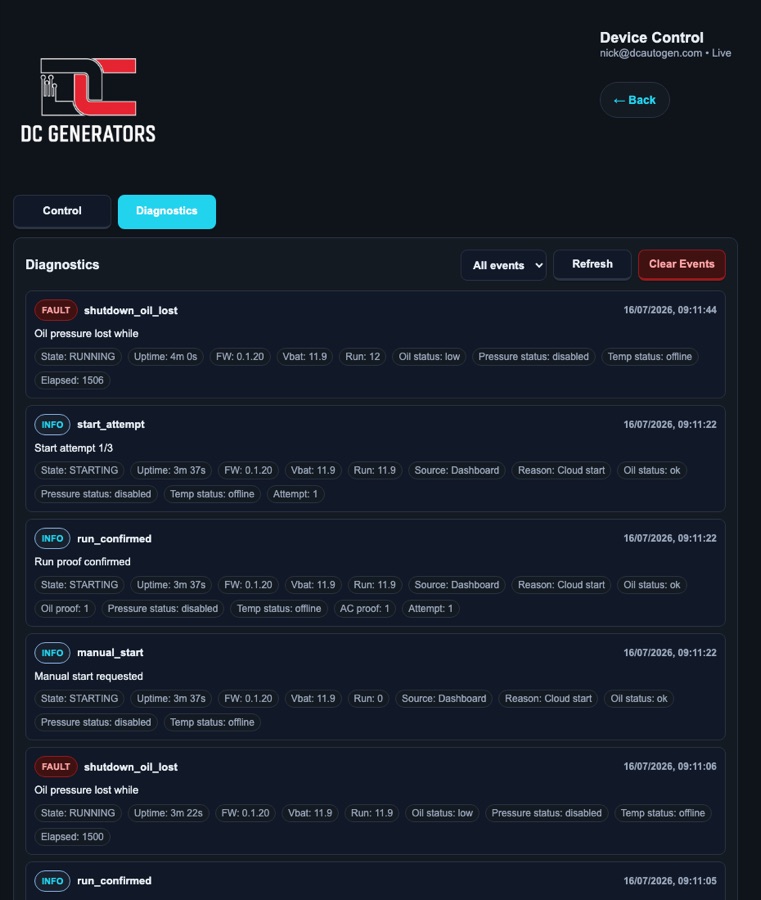
All events,Faults,Warnings,Info, andDebugseverity filtersRefreshreloads the latest event listClear Eventsdeletes stored diagnostics for the selected device- The active Diagnostics tab polls about every 5 seconds
- Device firmware emits diagnostics on virtual pin
V120 - The backend stores V120 events in
DeviceDiagnostics - V120 payloads are not broadcast to legacy mobile app parsers
- Retention defaults to 90 days and can be configured from 7 to 365 days
API and Storage
The diagnostics API is fleet_device_diagnostics_api.php. It requires email and device ID, accepts an optional severity filter, returns newest events first, and supports a POST clear action. Admin users can access full-fleet devices; dealer users are restricted to dealer scope.
DeviceID, EventType, Severity, StateName, StateCode, Message, SnapshotJson, FirmwareVersion, UptimeMs, and CreatedAt.
id, event_type, severity, state_name, state_code, message, snapshot, firmware_version, uptime_ms, and created_at.
Events
manual_start, manual_stop, reset, boot_recovery, start_attempt, run_confirmed, start_attempt_failed, and shutdown_high_battery.
service_lock, shutdown_high_temp, startup_failed, shutdown_oil_lost, and shutdown_run_signal_lost.
Snapshot Fields
st/sc state name/code, up uptime in ms, fw firmware, a attempt number, elapsed timing context, and reason stop reason.
src start source and why start reason. UI labels include Dashboard, BLE, button, schedule, local AP, manual, low battery, 2-wire input, and weekly schedule where applicable.
vb battery voltage, rs run-signal reading, rm run proof mode, cur charge current, ac/op proof flags, and ar/af/th raw/filtered run proof and threshold.
oil, ok, os, and ob describe oil protection. ts, et, at, and nt describe temperature freshness and values. ps, pv, and pb describe pressure control where enabled.
Firmware Policy Model
Firmware policy resolves in this order:
- single-device override
- dealer rollout
- global rollout
The most specific rule wins. Always validate the intended scope before assuming what a device will follow.
X Pro Firmware Console
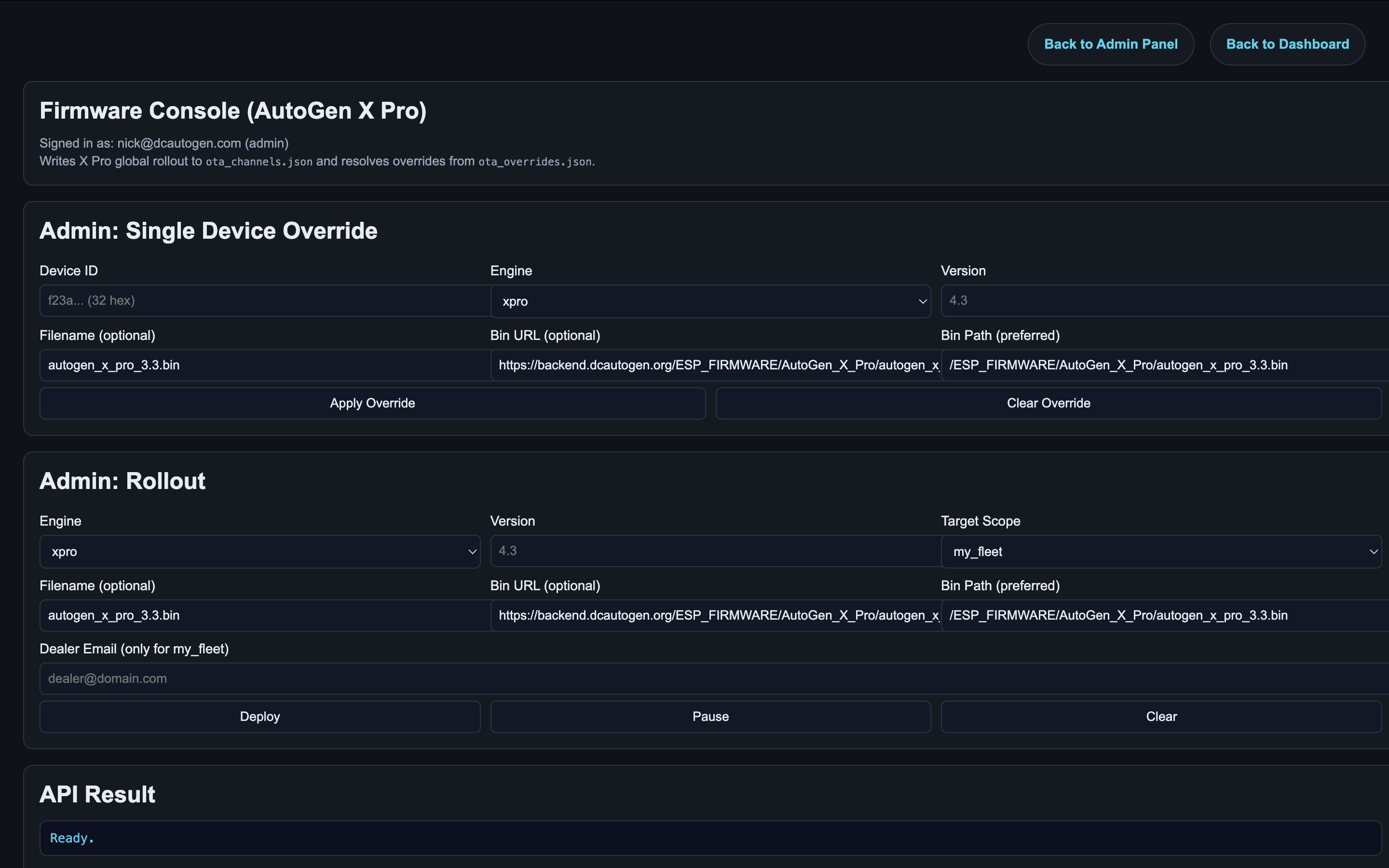
Use for controlled field testing, one-device recovery, or validating a release before broad rollout.
Use my_fleet for dealer-scoped action or all_global for intentional global X Pro policy.
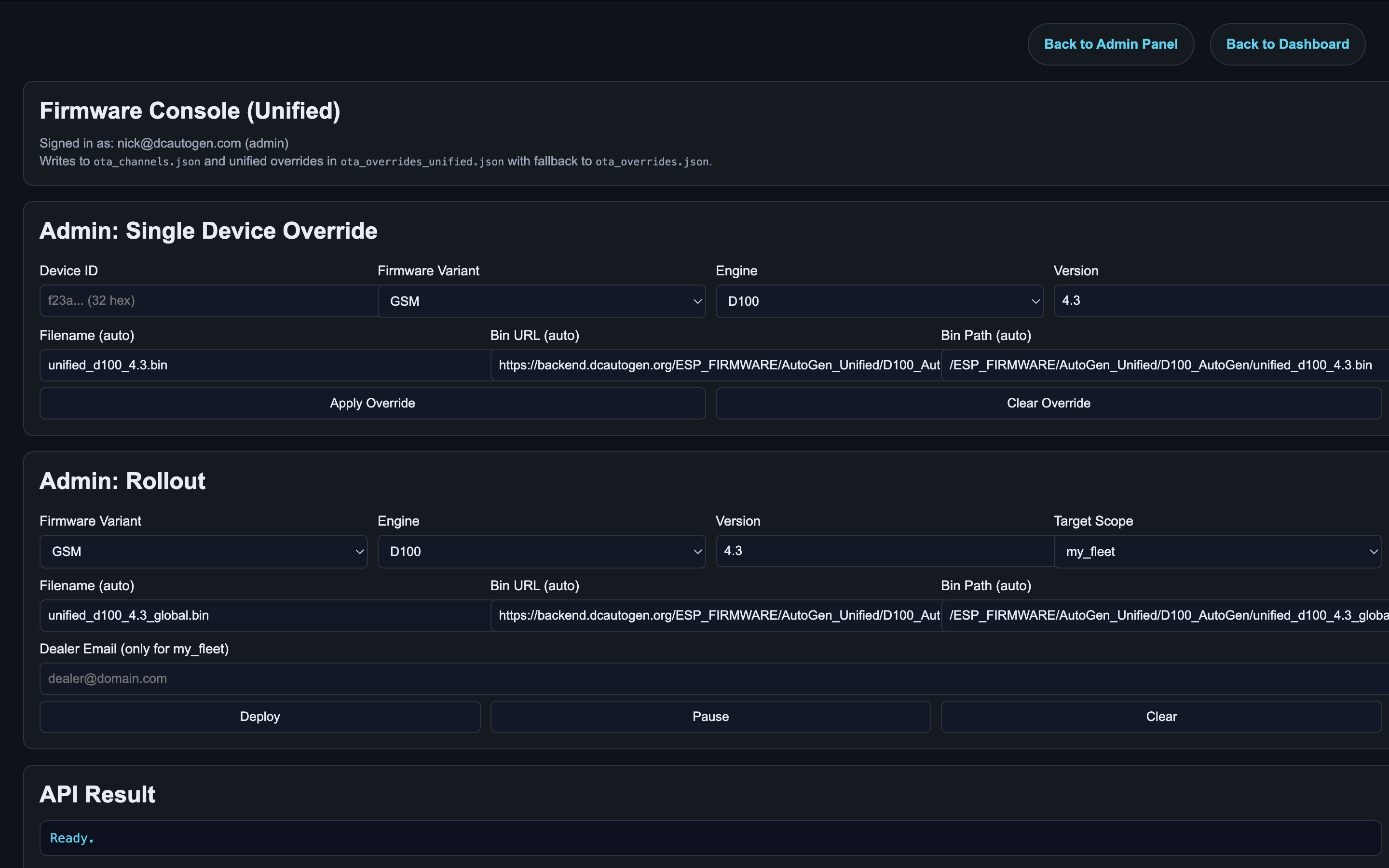
Unified Firmware Console
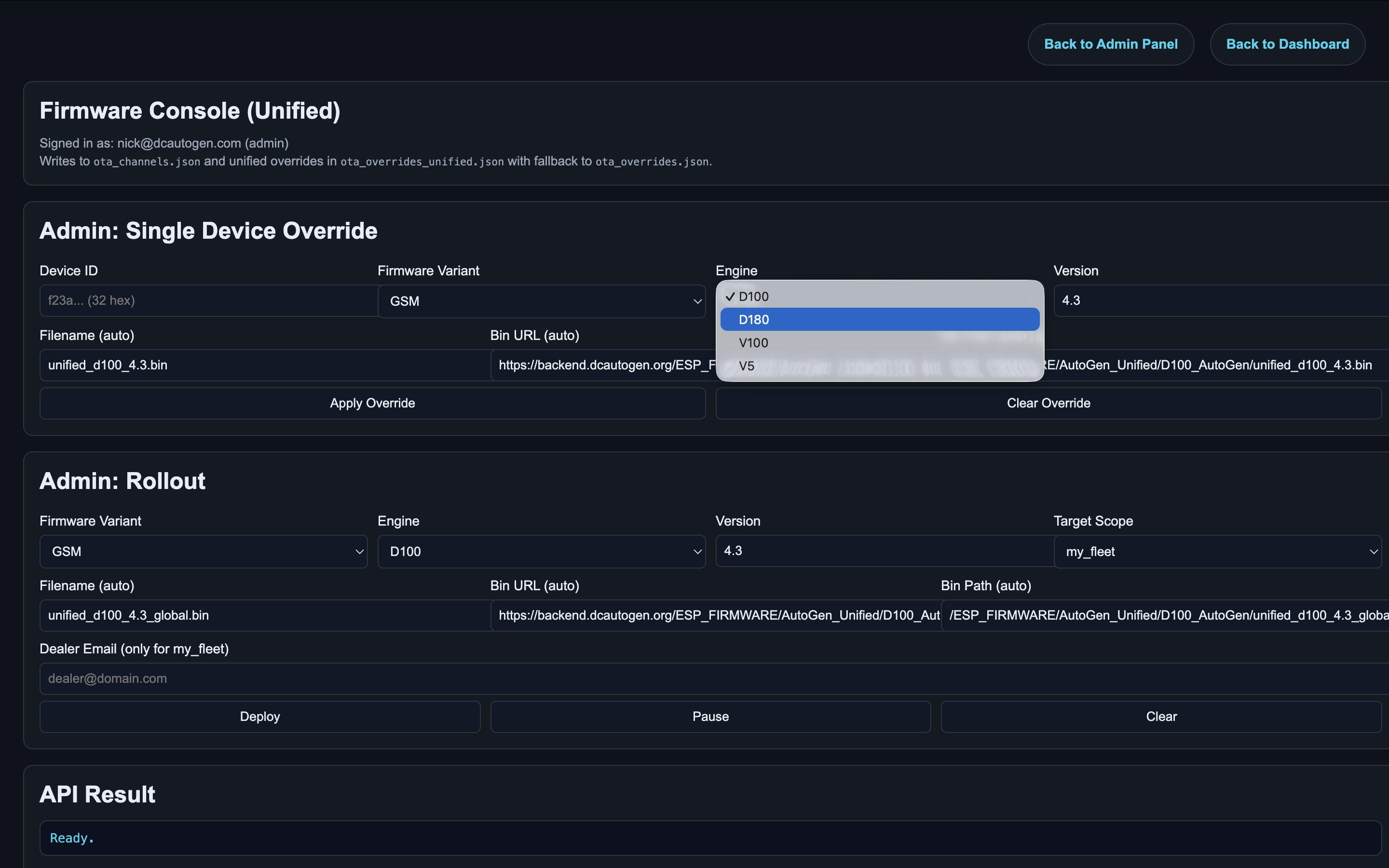
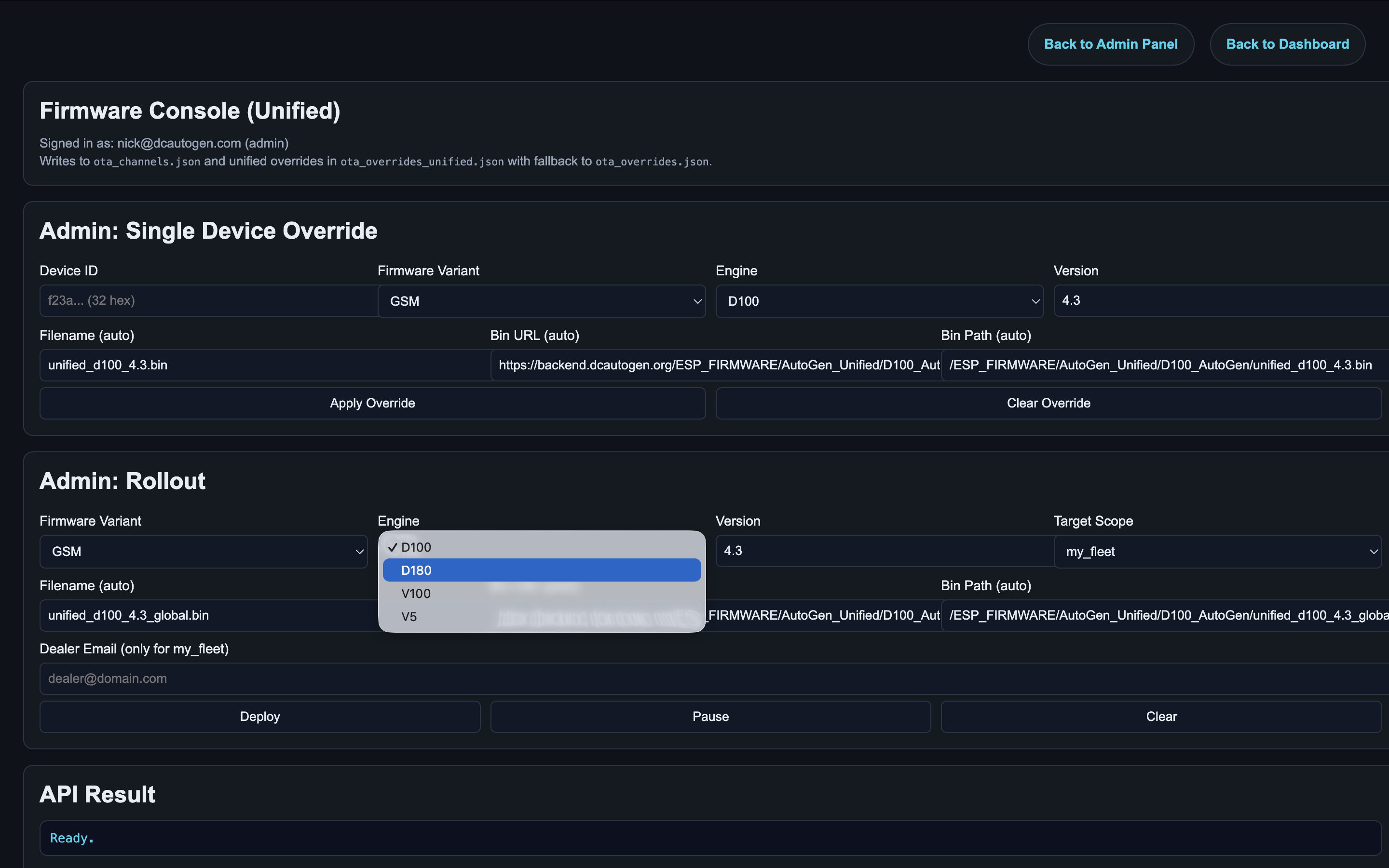
For Unified devices, always confirm the correct combination of:
Firmware Variant:GSMorWiFiEngine:D100,D180,V100, orV5Version
Ultra Firmware Console
For AutoGen Ultra devices, always confirm the correct combination of:
Firmware Variant:GSMorWiFiVersion
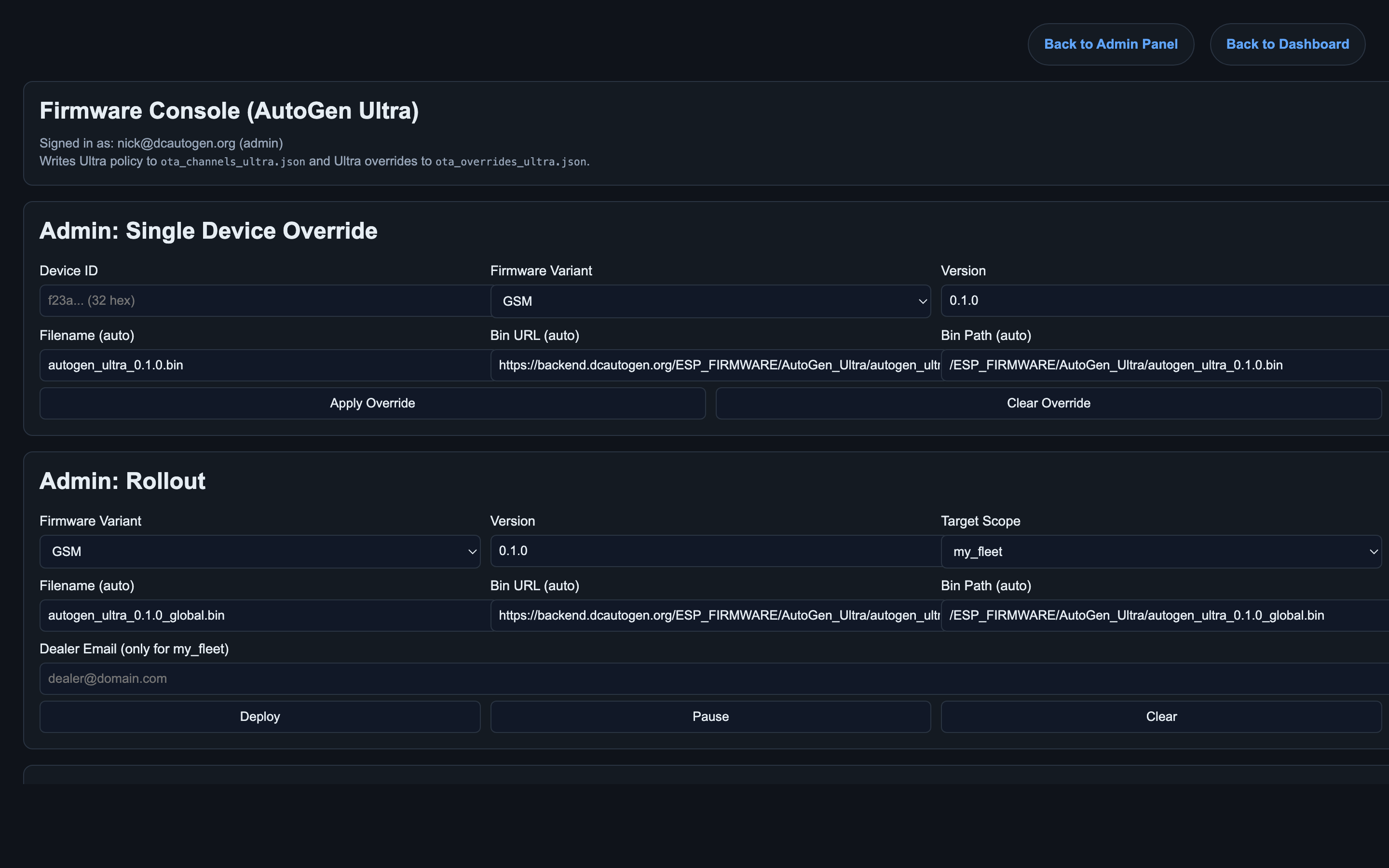
Use for controlled field testing, one-device recovery, or validating an Ultra release before broader rollout.
Use my_fleet for dealer-scoped action or all_global for intentional global Ultra policy.
Devices.Type = 8 Ultra controllers.Safe Release Procedure
- Bench test locally.
- Upload the bin to the correct EC2 firmware directory.
- Apply a single-device override to one test device.
- Trigger or wait for OTA and confirm the test device returns.
- Expand to dealer scope if stable.
- Expand globally only after validation.
API Tokens
Use the API Tokens page to issue bearer tokens for dashboards, reporting, automation, and approved control workflows.
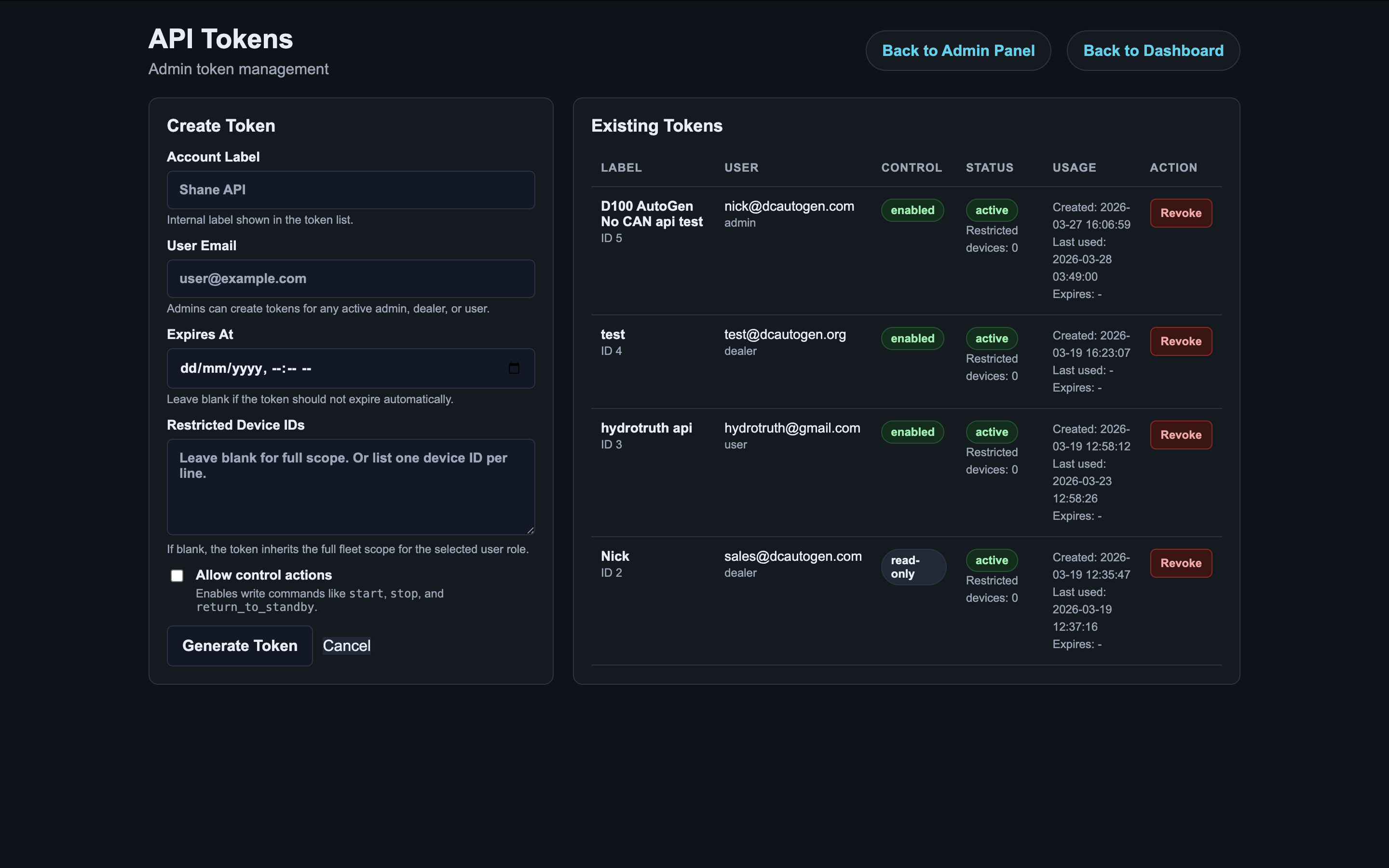
Preferred default for dashboards, reporting, and customer visibility.
Use only when the integration must send commands or supported settings writes.
Admin Workflow
Validate and release firmware
- Bench test locally.
- Upload bin to the correct directory.
- Apply one device override.
- Confirm update and live return.
- Expand scope only after proof.
Create integration access safely
- Choose the correct owning user.
- Decide read-only or control-enabled deliberately.
- Restrict devices if appropriate.
- Create the token and store ownership details internally.